
Brick just updated its app to highlight a feature that makes me love this little gadget even more.
Imagine this nightmare: You’ve done your evening skincare, brushed your teeth, and tucked yourself into bed only to realize you left on a lamp across the room. That’s the horror I feel when I forget to Brick my phone before bed and have to get up, walk to the kitchen, and tap it against my Brick in another room.
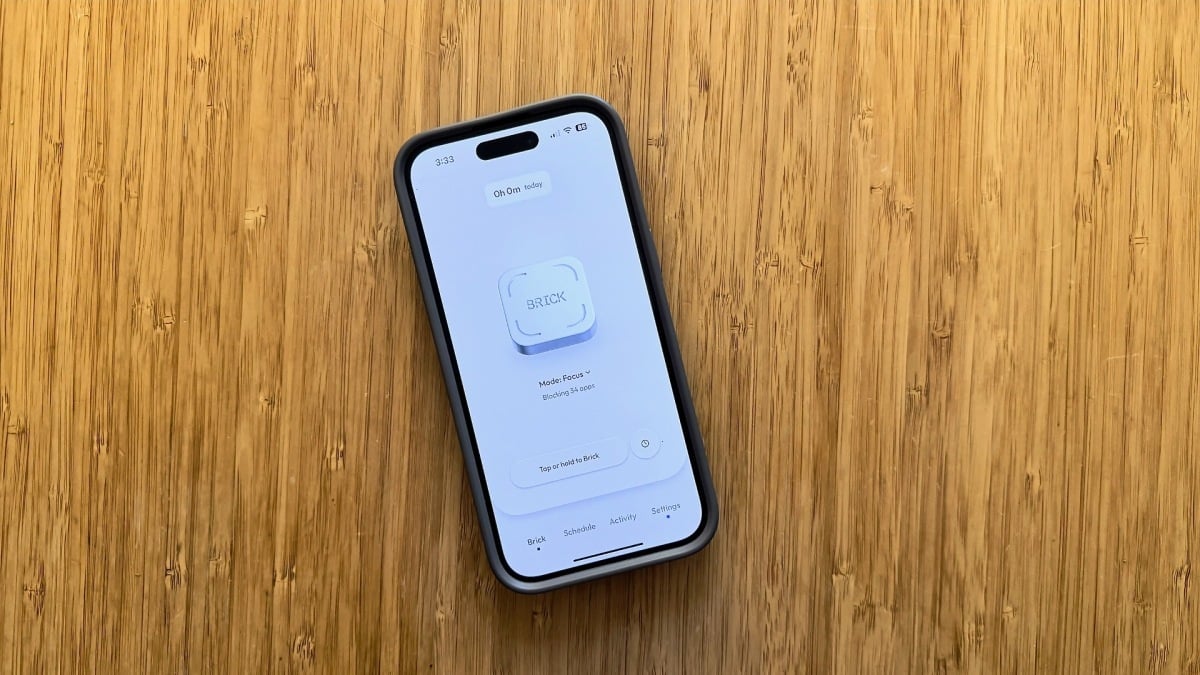
But when this happened last night, I noticed a change in the Brick app. Now, the button on the home page of the Brick app says “Tap or hold to Brick.” So, I held the button and my phone was Bricked — I didn’t even need to get out of bed.
Brick, the screen-time device that uses a physical NFC tag to block apps on your phone, cut my screen time in half. Plus, multiple people can use it, meaning my wife and I can share one. The Brick has become so popular that “Bricking” is now a verb.
Hold to lock: What’s changed with the Brick?

Now, you have the choice Brick your phone remotely.
Credit: Samantha Mangino / Mashable
Previously, you had to tap your phone against the Brick to lock it. Now, you have a second option. You can still tap to lock, or you can just hold the button down within the app, and it will lock. This means when you’re on the go and need to focus, you can remotely Brick your phone.
I reached out to Brick, and a spokesperson said that while this feature has always been available, the company updated the app to make this functionality more obvious to users. The change was necessary, I think. Several Mashable staffers are devoted Brick users, and we weren’t aware of this feature previously.
Mashable Deals

Now you can Brick your phone without physically tapping it against a Brick.
Credit: Samantha Mangino / Mashable
However, this doesn’t change how you unlock your phone when it’s Bricked. To Unbrick your phone, you still have to physically tap it against your Brick. Not surprising because the alternative would make Brick no different from any other screen time app out there.
So with this update, the only thing to be careful of is locking your phone when you’re away from it and getting locked out of an important app. Luckily, you can always use one of your five emergency unbricks.
Mashable readers save 10%